
Clicking on the “Add” button opens a pop-up menu. You can then select the desired evaluation from the list that appears. This evaluation will be added to the view. Use this block to structure the evaluation view as necessary.
If an evaluation has been added to the view, this still needs to be configured.
-
Header:
Enter text in this field which will then appear as a header above the respective element in the web view or in a report. -
Visibilitiy:
Use this point to determine if the respective block is visible for all users or only for admins.
Further fields depend on the type of block. E.g. you can set the value axis and aspect ratio for diagrams and for tables you can set the number of columns etc.
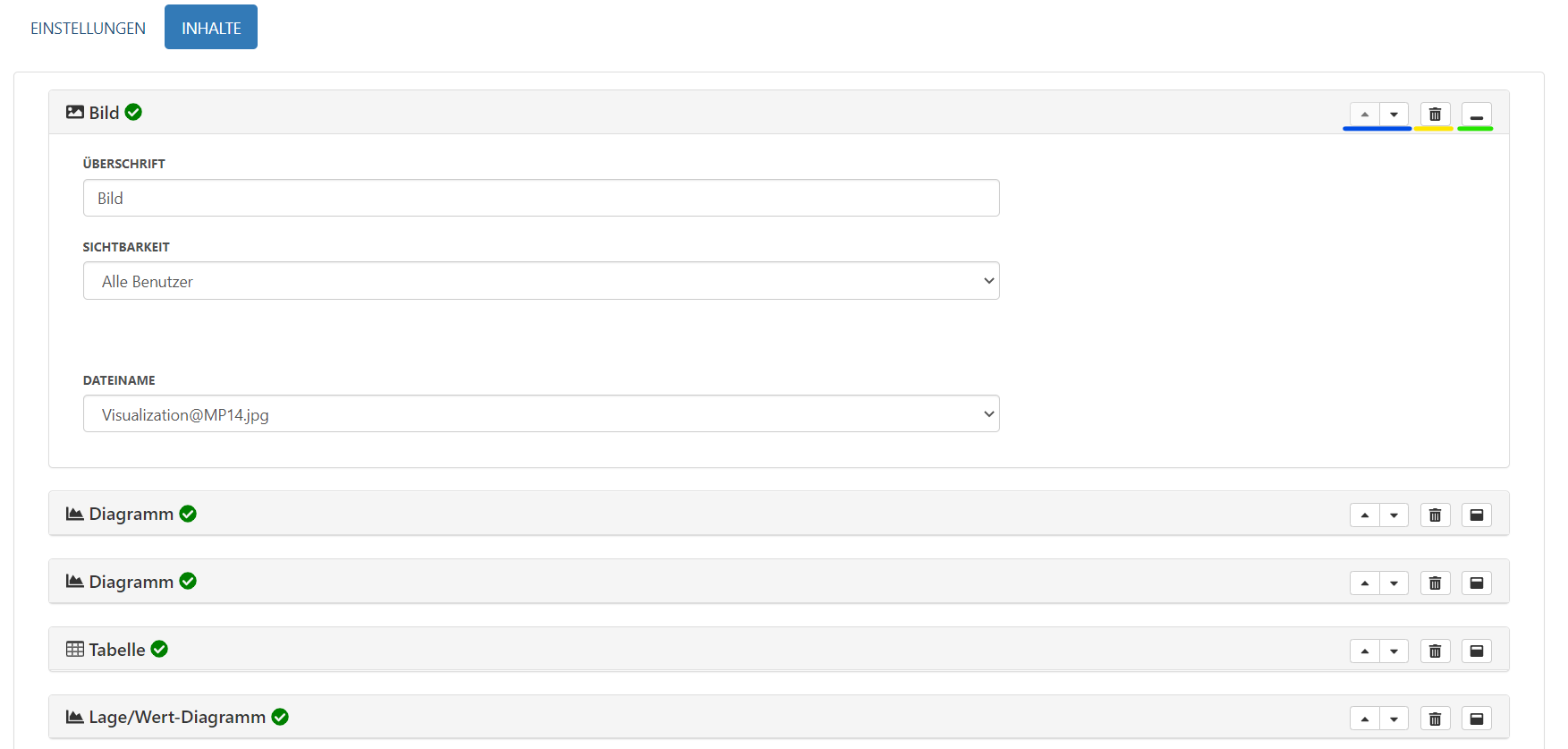
The buttons on the right of each block offer further options for configuration.
The two arrow icons (underlined in blue above) make is possible to move each block by one position i.e. above the block above or below the block below.

The Trashcan icon (underlined in yellow) deletes the respective block. When you click on the icon, new icons appear in the line. Clicking on the check confirms the deletion and clicking on the cross cancels the deletion.

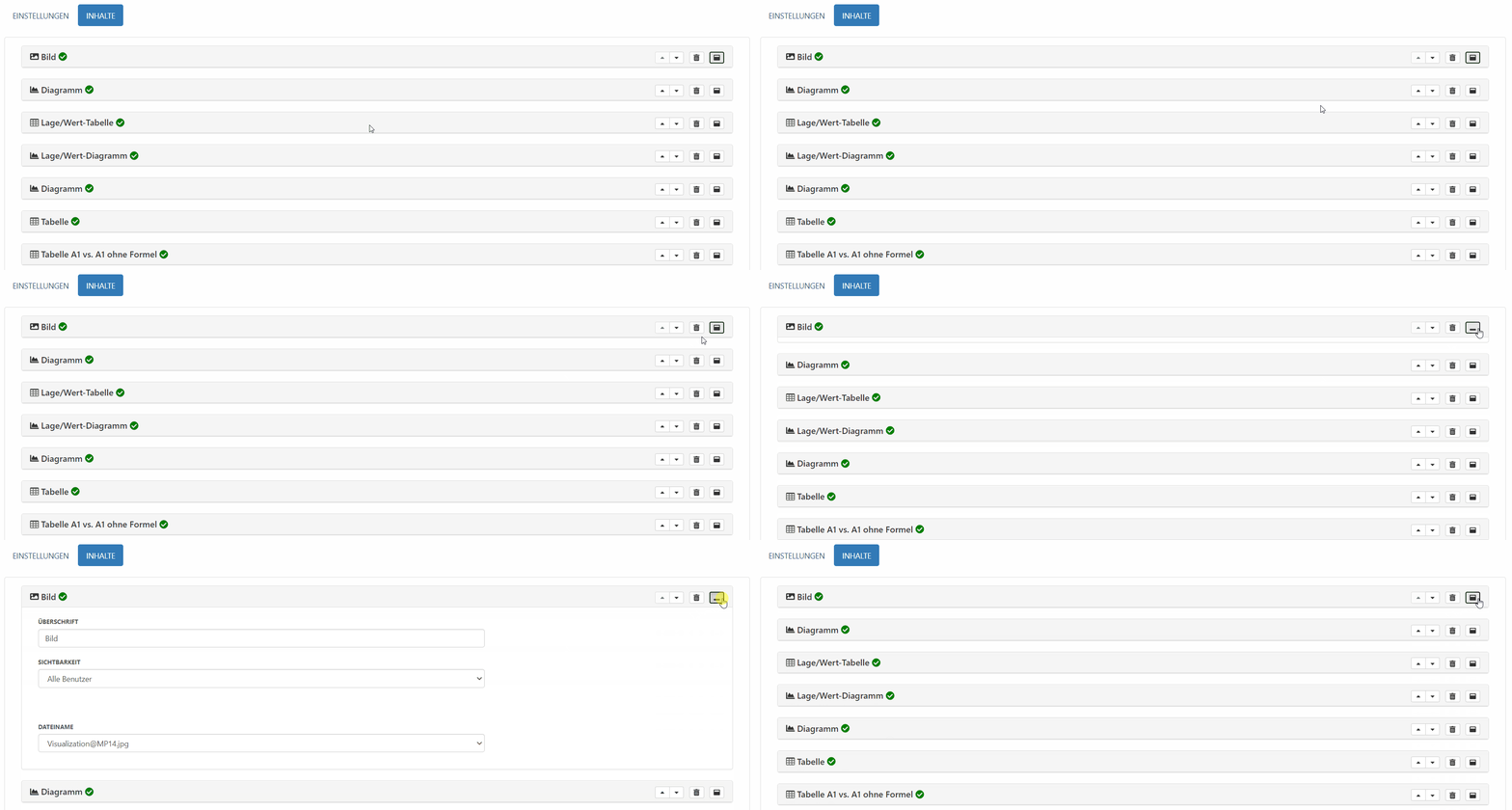
The Minimize icon (underlined in green) minimizes a block to its title line. Clicking on a minimized block again opens the expanded detail view.
Once all required changes have been made, you can confirm the changes by clicking on the “Save” button.